Getting started with Smarters Pro on iPhone and iPad
Find the official Smarters Pro listing for iPhone and iPad, and understand what installation, legally acquired media and provider credentials mean.
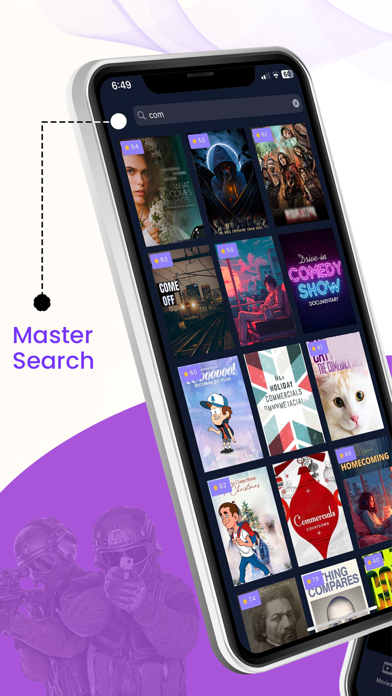
Start with the official iPhone and iPad listing
If you want to get started with Smarters Pro on an iPhone or iPad, begin with the official sources rather than an unrelated download page. The Smarters Pro website lists an iOS app for iPhone and iPad. Its official App Store listing has the identifier 6450746159, giving you a specific reference to check when looking for the app.
Open https://apps.apple.com/us/app/smarters-pro/id6450746159 to view that listing. This guide focuses on identifying the right app and understanding what you need beyond installation. It does not assume a particular operating system version or describe app screens that the supplied sources do not document.
Understand what you are installing
The App Store description presents Smarters Pro as a standalone media player. That distinction matters: installing a player is not the same thing as obtaining a media collection or arranging access through a service provider. The listing states that users add and manage their own legally acquired media.
Before proceeding, separate those two parts of the process in your mind. One is getting the application onto your device through its official listing. The other is having media you have legally acquired and, for the provider-login route described by the publisher, the appropriate provider credentials. Finding the app does not settle the second part.
Keep provider credentials separate from the app
The official How It Works page describes a straightforward sequence: get the app, then log in using credentials from your service provider. Those credentials therefore come from the provider, not from the mere act of installing Smarters Pro. If you do not yet have them, do not mistake the App Store listing for a source of provider login details.
The publisher also states that it does not provide or sell subscriptions, streams or content. If you are expecting installation to include those items, pause and reassess what you still need. For questions about credentials, refer to your provider rather than assuming the player publisher supplies them.
Read the Apple device references carefully
There is a small but useful distinction between the two official references. The Smarters Pro website lists the iPhone and iPad iOS app and separately lists an Apple TV app. Meanwhile, the official App Store listing identifies iPhone, iPad and Apple TV.
For an iPhone or iPad introduction, use the official listing above as your starting point. The Apple TV reference does not establish that setup looks identical on every device. The supplied material does not document device-specific screens, operating system requirements or a detailed installation sequence, so this guide does not fill those gaps with assumed taps or menu names.
Use a short readiness check
Before starting, check three things: you are viewing the official App Store listing, you understand that Smarters Pro is a media player rather than a content subscription, and you have identified your legally acquired media or the provider credentials needed for the published login route. This keeps an app-download task separate from a media-access question.
For reference, the publisher’s website is https://smarterspro.com/ and its workflow explanation is https://smarterspro.com/how-it-works/. If you need instructions for a particular screen or encounter an error, the supplied facts are insufficient to diagnose it. Use an exact description of the issue when seeking further guidance instead of relying on undocumented setup instructions.